
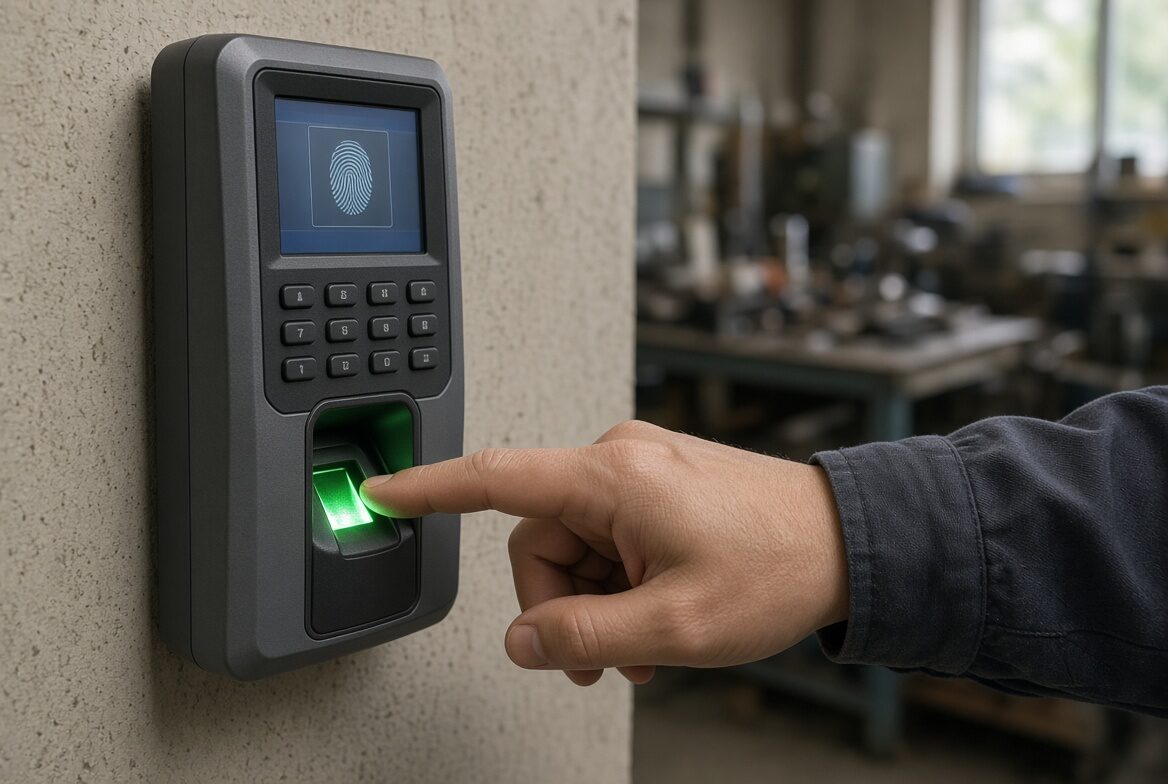
A biometric time clock, commonly called a fingerprint time clock, identifies the employee by their finger and records when they came in and when they left. The employee places a finger, the clock recognizes them, and the clock-in is recorded. There is no card to forget at home, and nobody can clock in for a friend.
What to check before choosing a fingerprint time clock, in short:
- Who clocks in: with a fingerprint, only the employee can clock in. Someone who doesn't want to, or can't, needs a card on the same clock.
- How many employees: how many fingerprints the clock stores, and whether there is room for people who will join later.
- What happens when the network goes down: a good clock keeps capturing clock-ins and sends them on when the connection is back.
- Where the clock-ins go: into one report, together with those who clock in from the phone and the computer, and from there to payroll.
Each of these questions is covered below.
Looking for something else? A simple time clock that works with ProperTime needs no hardware at all: employees clock in from the phone or the computer.
Biometric time clock or fingerprint time clock: what's the difference
"Biometric" means identification by a physical trait of the person. In time clocks it is usually the fingerprint, so a biometric time clock and a fingerprint time clock are mostly the same clock under two names. Employers choose a biometric clock when it matters to know that whoever clocked in is really who came to work.
A fingerprint is only one way to clock in. The others are a magnetic card, a proximity card or a mobile app, and which suits you depends on your workplace. They are all covered on the time clock page.
When a fingerprint clock fits
A biometric clock works best when employees come to the same place every day and enter through the same door:
- A factory: production workers clock in at the start and end of the day, with one finger.
- A warehouse or logistics center: many employees, one entrance, and one clock that recognizes them all.
- An office with one entrance: the clock hangs by the door, and every employee clocks in on the way in and out.
If most of your team walks through the same entrance every morning, a fingerprint clock is a simple and accurate way to record attendance. With ProperTime's time clock, employees clock in on the clock at the entrance, on their phone or on the computer, and everything goes into one report.
A biometric clock for a small office
A small office has no IT person and no time for a project. What it needs is one clock by the door that every employee understands without training, and a report that is ready when it's time to prepare payroll.
In an office, the clock connects to the office network by cable, and every clock-in goes into the attendance system. The manager sees who came and when, without collecting attendance sheets and without typing hours into Excel.
What to check before hanging a fingerprint clock in a small office:
- A spot by the door: on the wall, at a comfortable height, where every employee passes on the way in and out. The US10C takes little space: 16.6 cm wide and 14.2 cm high.
- A network point and a power outlet: the clock connects to the office network by cable, so both should be close to the spot you chose. If the network goes down, the clock keeps capturing clock-ins and sends them on when it's back.
- Clocking in without thinking: a finger on the sensor, a sound and a message on the screen, and that's it. No code to remember and no card to forget at home.
- Another way for those who need it: an employee who doesn't want to give a fingerprint, or whose finger isn't read well, clocks in with a card or proximity tag, on the same clock.
- A report ready for payroll: clock-ins go into each employee's attendance report, and at the end of the month you get a file ready to load into leading Israeli payroll systems.
And on the days people work from home? The employee reports from the computer or phone, and those clock-ins go into the same report, next to the ones from the clock. So one clock at the entrance is enough even for an office that works part of the week from home.
A simple time clock: what it means in practice
A simple time clock is one that no employee needs explained. On the US10C it looks like this:
- A finger or a card, and that's it: no code to remember and nothing to type.
- A color screen with a clear icon menu: you see what to do without searching.
- A sound and a message on the screen: the employee knows right away the clock-in was recorded.
- Connected like a printer: a network cable to the office network, and from then on clock-ins go into the report.
And whoever runs the business has nothing to do day to day: the clock-ins wait in the attendance report, ready for payroll.
Installing a biometric clock: from the wall to the first clock-in
- Hang it on the wall by the entrance, at a comfortable height, near a power outlet and a network point.
- Connect the clock to the office network with a network cable.
- Enroll the employees: one fingerprint per employee, once, at the clock. Whoever prefers gets a card or proximity tag.
- Test one clock-in per employee, and check that it reached their attendance report.
How to enroll a finger properly is in the section Enrolling a fingerprint.
A mobile biometric time clock: a clock at the entrance, an app in the field
Someone looking for a mobile biometric time clock usually manages a team where part of it doesn't arrive at the same door every morning: technicians, salespeople, employees who move between sites. The answer is not to carry the clock from place to place. The fingerprint clock stays on the wall at the entrance, connected to the office network, and employees in the field clock in and out in the phone app, for Android or iOS. The location is recorded with every mobile clock-in.
That way every employee clocks in where they start their day:
- Whoever comes to the office, factory or warehouse clocks in with a finger, on the clock at the entrance.
- Whoever leaves home straight for a client or a site clocks in in the app, and the location is recorded with the time.
- Whoever works from home reports from the computer.
All clock-ins, from the clock and from the phone, go into the same attendance report, and the manager sees everyone in one place.
How to choose a fingerprint time clock
Fingerprint clocks look alike on the wall, and the differences show only in daily use. A good clock has to suit both the employees who clock in on it every morning and whoever prepares payroll at the end of the month. Six questions to ask before you choose:
- How do employees identify themselves? A fingerprint guarantees that only the employee clocks in. A card or proximity tag is fast and familiar. A clock that recognizes both saves you the choice.
- How many employees will clock in on it? Check how many fingerprints the clock stores, and leave room for people who will join.
- How does it connect? A clock connected to the office network by cable passes every clock-in on to the attendance system.
- What happens when the network goes down? A good clock keeps capturing clock-ins, stores them in its memory and sends them on when the connection is back. That way no clock-in is lost.
- How easy is it to clock in? The employee should know right away that the clock-in was recorded, from a sound and a message on the clock, without typing codes.
- Where do the clock-ins go? The clock is only half the job. Check that clock-ins go into one report with the reports from the phone and the computer, and that at the end of the month you get a file ready for payroll.
With ProperTime we supply the US10C fingerprint clock. It recognizes employees by fingerprint and also by card or proximity tag, stores up to 1,500 fingerprints, connects to the office network by cable, keeps capturing clock-ins even when the network goes down (up to 50,000 in memory), and shows the employee with a sound and a message on the screen whether the clock-in was recorded.
Enrolling a fingerprint: how an employee starts clocking in
Before an employee clocks in with a finger, their fingerprint is enrolled on the clock. You do it once, at the clock, with the employee standing in front of it. A good enrollment saves trouble every morning after:
- Consent first, then enrollment: explain to the employee what the clock stores and why, and enroll only those who agreed. More on this in the section on employee privacy.
- A clean, dry finger: wet, greasy or dusty hands hurt the reading already at enrollment.
- A flat finger, in the center of the sensor: that way the sensor reads most of the print. Don't press hard and don't move.
- A finger that's easy to place: the one the employee will place without thinking, every morning. Someone who works with their hands is better off choosing a finger that wears less at work.
- Try right away: after enrollment the employee clocks in a few times. The clock shows with a sound and a message on the screen whether it recognized them, and you check that the clock-in reached their attendance report.
When the clock doesn't recognize the finger
For most employees, placing a finger is enough. But a fingerprint is part of the body, and it changes with work and with the weather. On any fingerprint clock, the sensor has a harder time reading:
- Fingers worn by physical work: in construction, renovation, cleaning or a warehouse.
- Very dry skin, or fingers frozen on a winter morning.
- A cut, a plaster or a burn on the enrolled finger.
- Wet, greasy or dirty hands.
The employee knows right away whether the clock recognized them: there is a sound and a message on the screen. When recognition fails, it is usually enough to wipe the finger, place it flat in the center of the sensor again, and try once more.
And if it happens every morning? Don't leave the employee standing in front of the clock. Give them a card or proximity tag, and they clock in with it on the same clock. The clock-in is recorded as usual, into the same report.
Fingerprint or employee card?
Both ways are common, and each suits a different situation:
- Fingerprint: when it matters to you to know who really came. Only the employee can clock in, and nobody clocks in for a friend.
- Card or proximity tag (RFID): when you want a fast, familiar clock-in: tap the clock and move on.
And you don't have to choose: the US10C recognizes both a fingerprint and a card or proximity tag on the same clock, and each employee clocks in the way that suits them.
That makes the card a backup for the biometric clock. It is especially useful:
- For an employee whose finger isn't read well: they tap a card instead of trying again and again.
- For an employee who doesn't want to give a fingerprint: they clock in with a card, on the same clock and into the same report.
- For a business moving from cards to fingerprints: some employees stay with the card, and some already clock in with a finger. The move happens gradually, without replacing the clock.
How many employees one biometric clock can handle
A biometric clock has two numbers worth knowing: how many fingerprints it stores, and how many users can be enrolled on it. They are not always the same number.
On the US10C:
- Up to 1,500 fingerprints.
- Up to 10,000 users: employees who clock in with a fingerprint, a card or a proximity tag.
- Up to 50,000 clock-ins stored on the clock.
For most businesses, 1,500 fingerprints is far more than needed. And in a large business, the number of users lets every employee clock in on the same clock: some with a finger and some with a card.
When you plan, count how many employees will clock in with a finger today, add those who will join, and check there is room for everyone.
Fingerprints and employee privacy: what Israeli law says
A fingerprint is not ordinary personal data. Israel's Privacy Protection Law lists a biometric identifier, used to identify a person by computer, among the types of "information of special sensitivity". That is how it has been defined since Amendment 13 to the law took effect in August 2025. The amendment also widened the enforcement powers of the Privacy Protection Authority, including financial sanctions.
What does it mean for an employer? A biometric clock isn't installed like a wall clock. The safe way is to offer employees a fingerprint as an option, not to require it, and to do it in an orderly way.
What to do before installing a biometric clock:
- Tell employees in advance, in writing: what the clock stores, for what purpose, who sees the data, and that giving a fingerprint is their choice. These are the things the law requires you to tell a person when collecting information from them.
- Ask for consent: an employee who agrees clocks in with a finger.
- Give a real alternative: in an employment relationship, an employee doesn't always feel free to refuse. Consent means something when there is another way to clock in: with a card or proximity tag. On the US10C this happens on the same clock, with no need to install another one.
- Use the fingerprint for attendance only: to identify the employee at the clock, and for no other purpose.
- Protect the data: only those who need to get access to the clock and to employee data.
However an employee clocks in, by finger, by card or from the phone, the clock-ins go into the same attendance report. So payroll gets a complete record, even when each employee clocks in differently.
The Authority publishes guidance and updates from time to time. Before installing a biometric clock, check the current information on the Privacy Protection Authority's website or consult a lawyer. This guide is general information about Israeli law, not legal advice.
From the biometric clock to the report and payroll
The clock records who came and when. ProperTime turns the clock-ins into a report: every clock-in on the US10C, by finger or by card, goes into the employee's attendance report, together with their reports from the phone and the computer. A clock at the entrance, an app and a computer, in one web-based attendance system that the manager opens from anywhere.
Attendance, absences and hours reporting for tasks and projects sit in one place. Managers approve reports and check exceptions, and at the end of the month ProperTime produces a payroll-ready file for leading Israeli payroll systems. Less copying to Excel and fewer typing mistakes.
The system is also approved for hours reporting to the Israel Innovation Authority, including reporting from the phone.
Setup is easy, and a human support team is available for any question. Want the full picture? Read more about ProperTime's time clock, or leave your details and we'll set up a 14-day trial for you, with no commitment and no credit card.